Commercial unsubscribe
Learn how to manage commercial email unsubscribe functionality in Knock.
Knock provides built-in support for commercial email unsubscribe functionality, allowing recipients to opt out of promotional or commercial messages with a single click.
How commercial unsubscribe works
#When you mark a workflow or broadcast as commercial, Knock automatically handles the necessary unsubscribe functionality:
- Adds required unsubscribe headers to all emails sent through that workflow or broadcast.
- Provides an unsubscribe URL variable that can be included in your email templates.
- Manages recipient opt-outs during preference set evaluation.
Configuring commercial workflows
#To enable commercial unsubscribe functionality for a workflow or broadcast:
- Navigate to the workflow or broadcast.
- For a workflow, click "Manage workflow." For a broadcast, click "Edit details."
- Toggle "Commercial."
- Save your changes.
- For a workflow, commit your changes.
Once enabled, Knock will automatically include the necessary unsubscribe headers in all emails sent through that workflow.
Adding unsubscribe links to emails
#Using footer links
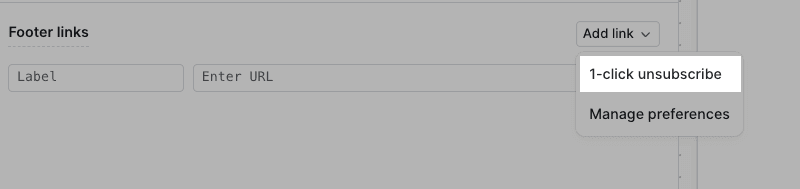
#When configuring an email layout using the visual editor, you can add an unsubscribe link to your email footer by clicking the "Add link" dropdown and selecting "1-click unsubscribe".
Using the code editor
#You can add an unsubscribe link to your email layouts or templates using the built-in variable:
You can conditionally include the link by checking if the variable is present:
Configuring the confirmation page
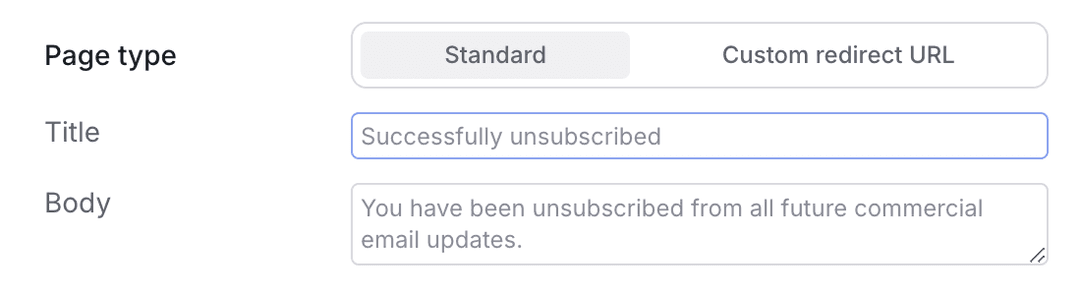
#When a user unsubscribes by clicking the unsubscribe link, Knock displays a confirmation page showing they have been successfully unsubscribed from commercial messages. You can customize this page by navigating to Platform > Preferences, then clicking the Unsubscribe tab.

Preference evaluation rules
#When a recipient clicks the unsubscribe link, their default preference set will be updated, marking commercial_subscribed as false. They will be opted-out of commercial messages, and they will continue to receive transactional messages based on their other preferences.
This recipient-level preference will take precedence over other environment or tenant preferences. Learn more about preference merging.
Setting commercial_subscribed via API
#The unsubscribe link writes this preference for you, but you can also set it yourself. This is useful to sync an opt-out you captured elsewhere in your product, or to backfill preferences across your existing users.
commercial_subscribed lives on the recipient's default preference set. Call the set user preferences endpoint with a merge persistence strategy to update this key without replacing the rest of the preference set.
To update many users at once, use bulk set preferences.
Learn more
#To learn more about managing recipient preferences and building preference centers with Knock, visit our preferences overview.